

For all those who are new to SEO, did you know you can write the best content on the web and still get no traffic? Often the reason is not your writing. Search engines may not be able to find, read or understand your pages properly. That is where technical SEO for beginners begins.
Technical SEO is the work of making your website easy for Google and other search systems to crawl, index and show to people. The best part of this is that you do not need to be a developer to do it. You need to know what to check, why it matters and which free tools to use.
Therefore, we have created a technical SEO guide to help you out. In this guide, you will learn how search engines process a site, which fixes matter most, and how to run a simple technical SEO audit. A ready-to-use checklist and a short FAQ are included at the end. So, if you are struggling with ranking, or want to improve the technical part of SEO, read this blog till the end and find all the solutions.
What Is Technical SEO?
Technical SEO is the practice of improving the backend and structure of a website so search engines can access, understand and rank its pages. It covers things like site speed, mobile-friendliness, security, URL structure, sitemaps and structured data.
For better understanding of this, let’s take an example first:
Think of your website as a shop. Content is the product on the shelf. Technical SEO is the door, the lights, the signboard and the floor plan. If the door is locked or the signboard is wrong, no one gets to see the product.
Technical SEO is different from the other two main parts of SEO:
- On-page SEO deals with the content on a page, such as headings, keywords and meta tags.
- Off-page SEO deals with signals from outside your site, such as backlinks and brand mentions.
- Technical SEO deals with how your site is built and how it performs.
All three work together. But technical SEO is the base. Without it, the other two lose much of their power. So, before improving the On-page SEO and Off-page SEO, you have to ensure the technical part is strong.
Why Technical SEO Matters
Here is a simple way to see it. Before a page can rank, three things must happen:
- Google must find the page.
- Google must understand the page.
- Google must choose to store the page in its index.
If any step fails, the page cannot appear in search results. If your technical part is weak or problematic, then it can break these steps without giving any indication. You may not see an error on your screen, yet your pages may be missing from Google.
But why does Google want to maintain a website’s technical health? This question is common in the mind of a new SEO person.
Good technical health also helps people. A fast, secure and mobile-friendly site is easier to use. Visitors stay longer, trust you more and take action more often. Search systems, including AI-powered answer tools, prefer sources that are clear, fast and well organised.
Ask yourself: Would you like to visit a slow-loading website often? You will get an answer.
How Search Engines Work – Crawling, Indexing and Ranking
You need to know this process to fix technical issues with confidence.
- Website crawling: Search engines send automated programs, called crawlers or bots, to visit pages. Googlebot is Google’s crawler. It follows links from page to page and also reads your sitemap to discover URLs.
- Google indexing: The next thing that comes after crawling. Google tries to understand the page. It reads the text, images, headings and code, then stores useful pages in a huge database called the index. Only indexed pages can show up in search. If your page is not indexed, it won’t appear in search.
- Ranking: When someone searches, Google picks pages from its index and orders them by relevance, quality and many other signals.
Most beginner problems happen in the first two steps. A page that cannot be crawled cannot be indexed. A page that is not indexed cannot rank. So most technical SEO work protects crawling and indexing first.
Step 1: Make Your Website Easy to Crawl
Crawlers have a time limit per site. This is often referred to as a crawl budget. Small sites don’t tend to run out of it, but wasted crawling can still delay discovery of new pages.
So, how do you make crawling smooth?
- Keep your core pages close to your homepage. A page that requires many clicks to access is more difficult for bots to find.
- Connect pages to each other. An orphan page is a page that has no links pointing to it. Bots may not be able to discover them.
- Avoid endless URL combinations. Filters, search results and calendar pages can create thousands of useless URLs.
- Fix server errors. If your server is slow or crashes often, bots will visit less often.
- Do not hide key content behind logins or scripts that bots cannot run.
You can view crawl activity in Google Search Console, under Settings, in the Crawl stats report. It tells you how often Google is visiting your site, and if it is hitting errors.
Step 2: Check Your Indexing Status
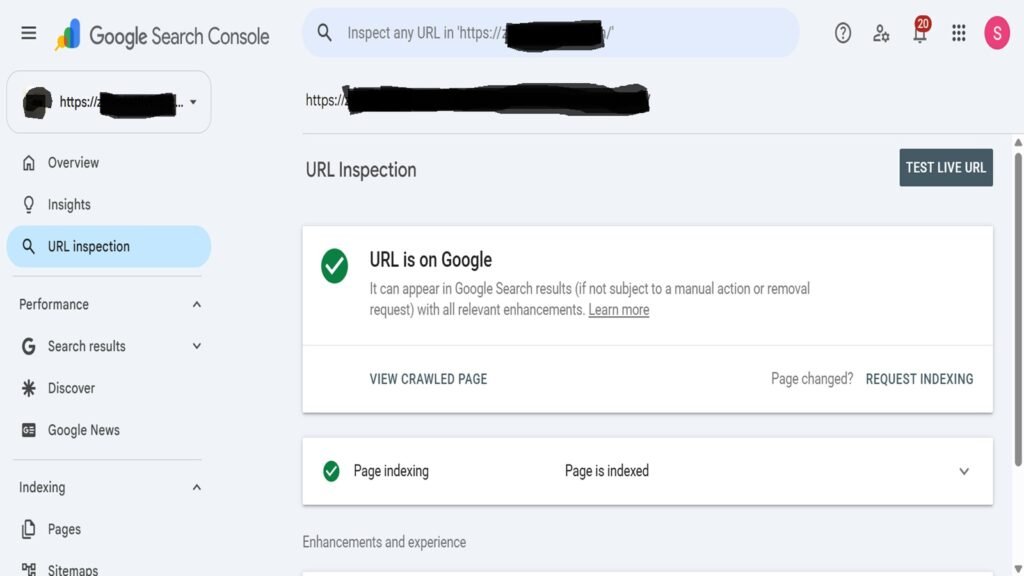
Next, confirm that your important pages are actually in Google’s index.
Quick check: Type site:yourdomain.com into Google. This shows a rough view of indexed pages. It is not exact, but it helps you spot big gaps.
Better check: Use the URL Inspection tool in Google Search Console. Paste any page URL and the tool tells you:
- Whether the page is indexed
- When Google last crawled it
- Which canonical URL Google chose
- Whether the page is mobile-friendly
- Whether any structured data was found
If a page is not indexed, you can ask Google to look at it again by using the “Request indexing” button after you fix the problem.
The Pages report in Search Console lists all the indexing issues on your site, grouped by cause. Common reasons include “Crawled, currently not indexed”, “Discovered, currently not indexed”, “Blocked by robots.txt” and “Duplicate without user-selected canonical”.
Some pages should not be indexed, such as thank-you pages or internal search results. Do not panic over every excluded URL. Focus on pages you want people to find.
Step 3: Set Up Your Robots.txt File Correctly
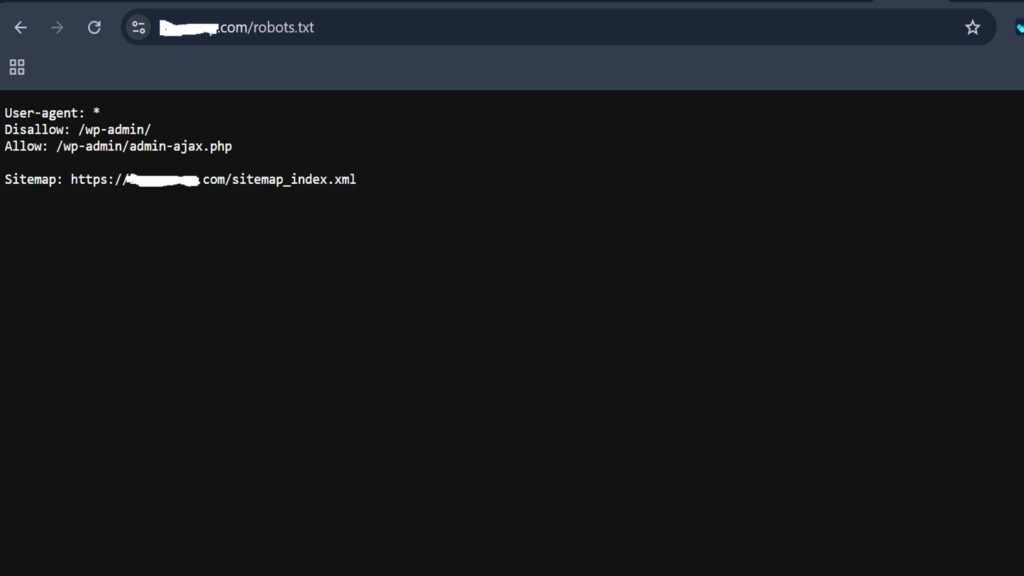
A robots.txt file is a small text file in the root of your site, for example yourdomain.com/robots.txt. It tells crawlers which parts of your site they may or may not visit.
A simple example looks like this:
User-agent: *
Disallow: /admin/
Allow: /
Sitemap: https://yourdomain.com/sitemap.xml
Here is what each line does:
User-agent: *means the rules apply to all bots.Disallow: /admin/asks bots not to crawl that folder.Sitemap:points bots to your XML sitemap.
Important beginner warnings:
- A single wrong line like
Disallow: /can block your whole site. This mistake happens more often than you would think, especially after a website redesign. - Robots.txt controls crawling, not indexing. A blocked URL can still appear in search if other sites link to it. To keep a page out of search, use a
noindexmeta tag instead, and leave the page crawlable so Google can see that tag. - Never use robots.txt to hide private data. It is a public file.
Always test changes before publishing. open yourdomain.com/robots.txt, check its contents and HTTP response, and inspect important URLs in Search Console to investigate crawling problems.
Step 4: Create and Submit an XML Sitemap
An XML sitemap is a file that lists the URLs you want search engines to crawl. It’s like a map you give a visitor. It doesn’t make Google index a page, but it helps Google find pages faster, especially new pages or pages deep in your structure.
Good sitemap habits:
- Include only indexable pages that return a 200 status code.
- Leave out redirected, broken, blocked or noindex URLs.
- Keep each sitemap under 50,000 URLs or 50 MB. Split it into several files if needed.
- Update it automatically when you add or remove pages. Most CMS platforms and SEO plugins do this for you.
- Reference it in your robots.txt file.
To submit it, open Google Search Console, go to Sitemaps, enter your sitemap URL and click Submit. The report will show if Google could read it and how many URLs it found.
Step 5: Build a Clear Website Architecture and URL Structure
Website architecture is how your pages are organised and connected. A clean structure helps bots and people. It also helps search systems understand which topics your site covers.
A simple structure follows this pattern:
- Homepage
- Category pages
- Individual pages or posts
Aim for important pages to be reachable within three clicks of the homepage. This is a good guide, not a strict rule.
URL structure also matters. A good URL is short, readable and descriptive.
- Good:
yourdomain.com/technical-seo/robots-txt-guide - Poor:
yourdomain.com/index.php?id=4821&cat=7
URL best practices:
- Use lowercase letters.
- Separate words with hyphens, not underscores.
- Keep URLs short and meaningful.
- Avoid extra parameters and session IDs where possible.
- Avoid changing URLs without a reason. If you must change one, add a redirect.
Step 6: Use Internal Linking Wisely
Internal links connect one page of your site to another. They help bots find pages, distribute ranking strength through your site and direct visitors to related information.
Simple internal linking rules:
- Linking from strong, popular pages to newer pages that need a boost.
- Use descriptive anchor text: “Learn how to fix canonical errors” beats “click here”
- Integrate links into the body of your content where they provide value for the reader.
- Connect related subjects. Your sitemap post should link to your robots.txt post.
- Add a minimum of a few relevant links to orphan pages to improve them.
- Don’t stuff a page with links or try to force keyword-stuffed anchors. This does not sound natural and can seem manipulative.
Breadcrumb navigation is another useful tool. It displays the path to a page (Home > Guides > Technical SEO) and provides bots with a clear map of your hierarchy.
Step 7: Handle Duplicate Content and Canonical Tags
Duplicate content means the same or very similar content is available at more than one URL. It happens easily. For example, these can all show the same page:
http://yourdomain.com/pagehttps://yourdomain.com/pagehttps://www.yourdomain.com/pagehttps://yourdomain.com/page?ref=email
When this happens, search engines must guess which version to show. That can split ranking signals and waste crawl time.
Canonical tags solve this. A canonical tag is a small line of code in the page’s head section that tells Google which URL is the preferred version: <link rel=”canonical” href=”https://yourdomain.com/page” />
Tips for using canonical tags:
- Add a self-referencing canonical to every indexable page.
- Make sure the canonical URL is live, indexable and returns a 200 status.
- Do not point canonicals to unrelated pages.
- Do not mix signals. A page should not have a canonical to one URL and a noindex tag at the same time.
Also choose one main version of your domain (with or without www) and redirect the others to it. Treat the canonical tag as a strong hint rather than a command, since Google may choose a different URL if your signals conflict.
Step 8: Fix Redirect Errors and Broken Links
Pages move, get deleted or change names. Without proper handling, visitors and bots hit dead ends.
Understand the main redirect types:
- 301 redirect: A permanent move. Use it when a page has moved for good. It passes most ranking signals to the new URL.
- 302 redirect: A temporary move. Use it only when the change is short-term.
Common redirect errors to avoid:
- Redirect chains: URL A goes to B, then to C, then to D. Each extra hop slows the page and wastes crawl effort. Point the first URL straight to the final one.
- Redirect loops: A goes to B and B goes back to A. The page never loads.
- Redirecting everything to the homepage. If an old page has no close match, a proper 404 or 410 is often better than a misleading redirect.
Broken links are links that lead to a missing page (a 404 error). A few are normal. But many broken links, especially internal ones, create a poor experience. Find them with a crawler tool or the Pages report in Search Console, then update the link, add a redirect or remove it.
Step 9: Improve Website Loading Speed and Core Web Vitals
Speed is part of page experience. Slow pages frustrate users and many leave before the page even loads.
Google measures real-world experience through Core Web Vitals. There are three:
| Metric | What it measures | Good score |
|---|---|---|
| LCP (Largest Contentful Paint) | How fast the main content loads | 2.5 seconds or less |
| INP (Interaction to Next Paint) | How quickly the page responds to clicks and taps | 200 milliseconds or less |
| CLS (Cumulative Layout Shift) | How much the layout jumps around while loading | 0.1 or less |
You can test your pages with PageSpeed Insights. It shows lab data and real user data (when enough is available) and lists clear fixes. Search Console also has a Core Web Vitals report that groups URLs by status.
Easy ways to improve website loading speed:
- Compress images, use modern formats like WebP or AVIF and size images to fit their space.
- Use lazy loading for images below the first screen, but not for the main image at the top.
- Reduce heavy scripts, remove plugins and remove third-party code you do not need.
- Minify CSS and JavaScript so files are smaller.
- Enable browser caching so repeat visitors load pages faster.
- Use a content delivery network (CDN) to serve files from locations close to the visitor.
- Choose reliable hosting; a slow server limits every other fix.
- Set width and height on images and ads so the layout does not jump (this helps CLS).
Do not chase a perfect 100 score. Focus on real improvements that users can feel.
Step 10: Make Sure Your Site Is Mobile-Friendly
Google mainly uses the mobile version of a page for indexing and ranking. This is called mobile-first indexing. If your mobile page is weak, your rankings can suffer even if the desktop version looks great.
Mobile-friendliness checklist:
- Use a responsive design that adapts to every screen size.
- Make sure the mobile page has the same main content as the desktop page.
- Keep text readable without zooming.
- Leave enough space between buttons and links so they are easy to tap.
- Avoid pop-ups that cover the whole screen.
- Do not block CSS, JavaScript or images that are needed to display the page.
Test a few key pages on a real phone, not only in a browser tool. The URL Inspection tool can also show how Google sees a page.
Step 11: Secure Your Site with HTTPS
HTTPS encrypts the data between your visitor and your site. Browsers warn visitors when a site is not secure, which hurts trust. Google has also used HTTPS as a light ranking signal for years.
What to do:
- Install an SSL/TLS certificate. Many hosts offer one for free.
- Redirect all HTTP URLs to HTTPS with 301 redirects.
- Update internal links, canonical tags and sitemaps to use HTTPS.
- Fix mixed content, which happens when a secure page loads images or scripts over HTTP.
- Renew your certificate before it expires.
Step 12: Add Structured Data and Schema Markup
Structured data is code that describes your content in a format machines can read easily. The most common format is JSON-LD, and it is usually based on the Schema.org vocabulary. This is what people call schema markup.
Structured data does not directly boost rankings. But it helps search systems understand your page and may make it eligible for richer displays in search results. It also gives AI-driven search tools cleaner facts to work with.
Common schema types for beginners:
- Article schema: It is used for blog posts and guides
- Organization Schema: It is for your business details
- BreadcrumbList: It is for navigation paths
- FAQPage Schema: It is for question-and-answer content (note that Google now shows FAQ rich results only for a small set of sites, but the markup can still add clarity)
- Product and Review Schema: It is used for online stores
- LocalBusiness Schema: It is for businesses with a physical location
Rules to follow:
- Mark up only content that is visible on the page.
- Keep the data accurate and up to date.
- Do not add fake reviews or misleading details. This can lead to a manual action.
- Test your markup with Google’s Rich Results Test and check the Enhancements section in Search Console.
How to Do a Technical SEO Audit: A Simple Process
A technical SEO audit is a health check for your website. You do not need paid software to begin. Follow these steps:
1. Connect Google Search Console: Verify your site and let data collect. This is your most important free source.
2. Check indexing: Open the Pages report. Look at which URLs are indexed and why others are excluded. Compare that with the pages you actually want in search.
3. Crawl your site: Use an SEO audit tool to crawl all your URLs. Many tools offer free or limited plans. The crawl will show broken links, redirect chains, missing titles, duplicate pages and more.
4. Review robots.txt and sitemaps: Confirm nothing important is blocked and your sitemap lists only clean, indexable URLs.
5. Test speed and Core Web Vitals: Run your main page types through PageSpeed Insights: the homepage, a category page and an article page. Fix the biggest issues first.
6. Check mobile and security: Review mobile usability and make sure every page loads over HTTPS without warnings.
7. Review canonicals and duplicates: Look for pages with missing, wrong or conflicting canonical tags.
8. Inspect structured data: Test your schema and fix any errors or warnings.
9. Make a priority list: Sort the problems by impact. Fix blockers first (pages not indexed or not crawlable), then speed, then smaller improvements.
10. Repeat on a schedule: Small sites can audit every quarter. Larger or busier sites may need a monthly check.
Technical SEO Checklist for Beginners
Use this list as a quick reference.
Crawling and indexing
- Robots.txt does not block important pages
- XML sitemap is submitted in Search Console
- Important pages are indexed
- No accidental noindex tags
- No orphan pages
Site structure
- Clear hierarchy and short, readable URLs
- Important pages within three clicks of the homepage
- Helpful internal links with descriptive anchor text
- Breadcrumbs on deeper pages
Duplicates and redirects
- Self-referencing canonical tags on indexable pages
- One preferred domain version
- No redirect chains or loops
- Broken links fixed
Performance and experience
- LCP, INP and CLS in the “good” range
- Images compressed and sized correctly
- Mobile-friendly, responsive layout
- HTTPS on every page with no mixed content
Enhancements
- Structured data added and tested
- Search Console errors reviewed regularly
Common Technical SEO Issues Beginners Face
Here are the technical SEO issues you will see most often, and what to do about them.
- Pages get blocked by mistake, so check robots.txt and meta robots tags after every redesign or site move.
- Duplicate pages can come from URL parameters, so use canonical tags and keep parameter URLs out of your sitemap.
- Large images slow pages down, so compress and resize them.
- Mobile content can be missing or thin, so make sure the mobile version contains the same key information.
- Soft 404s are pages that look empty or missing but return a 200 status, so return a proper 404 or add real content.
- Sitemaps can go out of date, so keep yours in sync with your live pages.
- Don’t ignore Search Console warnings, and check the reports at least once a month.
Technical SEO Best Practices to Follow Long Term
If you want to keep the technical seo in good condition in a longer game, then here are some best practices you must follow:
- Build for people first, because technical fixes should make the site better to use, not just easier to game.
- Stay within Google’s spam policies, and avoid hidden text, cloaking, doorway pages, link schemes and mass-produced low-value content. These practices can lead to ranking drops or removal from search.
- Keep your content clear and structured, using proper heading levels, short paragraphs and direct answers. This helps traditional search, answer engines and AI search tools understand and quote your content.
- Monitor after every change, since updates to themes, plugins or hosting can quietly break things.
- Document your changes, because a simple log helps you link traffic shifts to the work you did.
- Keep learning, as search systems change often, so follow Google’s official documentation and Search Central updates.
Final Words
Technical SEO for beginners boils down to a few simple concepts. Enable search engines to crawl your site. Help get the right pages in the index. Make your site fast, secure and mobile user friendly. Then check your work regularly with free tools like Google Search Console.
You don’t have to fix everything in a week. Start with indexing and crawling, then speed and mobile, and finish with structured data and regular audits. Small, steady gains add up to a solid foundation.
Want some more? LearnSERP makes SEO simple with practical lessons that take the complexity out of the subject and make it into easy to follow steps. Learnserp.com is the best way to learn beginner-friendly guides, build your skills confidently and get started on improving your website’s search performance today.
Frequently Asked Questions About Technical SEO
What is technical SEO in simple words?
Technical SEO means setting up your website so search engines can find, read and store your pages easily. It covers speed, security, mobile use, site structure and clean code.
Is technical SEO hard for beginners?
No. The basics are easy to learn. Start with Google Search Console, a sitemap, a clean robots.txt file and a few speed fixes. You can handle deeper tasks as you gain confidence.
How long does technical SEO take to work?
Some fixes, like unblocking a page, can show results within days or weeks. Others, such as speed and structure improvements, can take a few months to show a clear effect.
Do I need coding skills to do technical SEO?
Not for most tasks. Many fixes can be done through your CMS, plugins or hosting panel. Basic knowledge of HTML helps, and a developer can handle advanced changes.
What are the best tools for a technical SEO audit?
Google Search Console and PageSpeed Insights are free and essential. A website crawler helps you find broken links, redirects and duplicate pages across the whole site.
How often should I run a technical SEO audit?
Every three months is a good rhythm for most sites. Run an extra check after a redesign, migration or major plugin update.
What is the difference between crawling and indexing?
Crawling is when a search bot visits and reads your page. Indexing is when the search engine stores that page so it can appear in results.
Does page speed affect rankings?
Yes, page experience is one of many signals. Speed alone will not beat a more relevant page, but a slow site can lose visitors and weaken your results.